
SQL Connect Downloads
Your go-to IDE forOracle Cloud Queries
Stop wrestling with clunky web tools and slow XML exports. Get the powerful, intuitive IDE you’ve been missing for Oracle Cloud and start running queries in minutes.

Meet FlashAI:Your AI-Powered SQL Sidekick
Convert natural language into SQL queries effortlessly with FlashAI. Type in plain English, and FlashAI handles the rest—no deep SQL knowledge required. It learns from previous queries, offers real-time suggestions, and auto-corrects SQL errors, making SQL querying faster, easier, and more accessible for all users.
Transform SQL Chaos into Clarity
Say goodbye to inefficient workflows and complex tools. Discover features designed
to simplify and enhance your SQL querying process
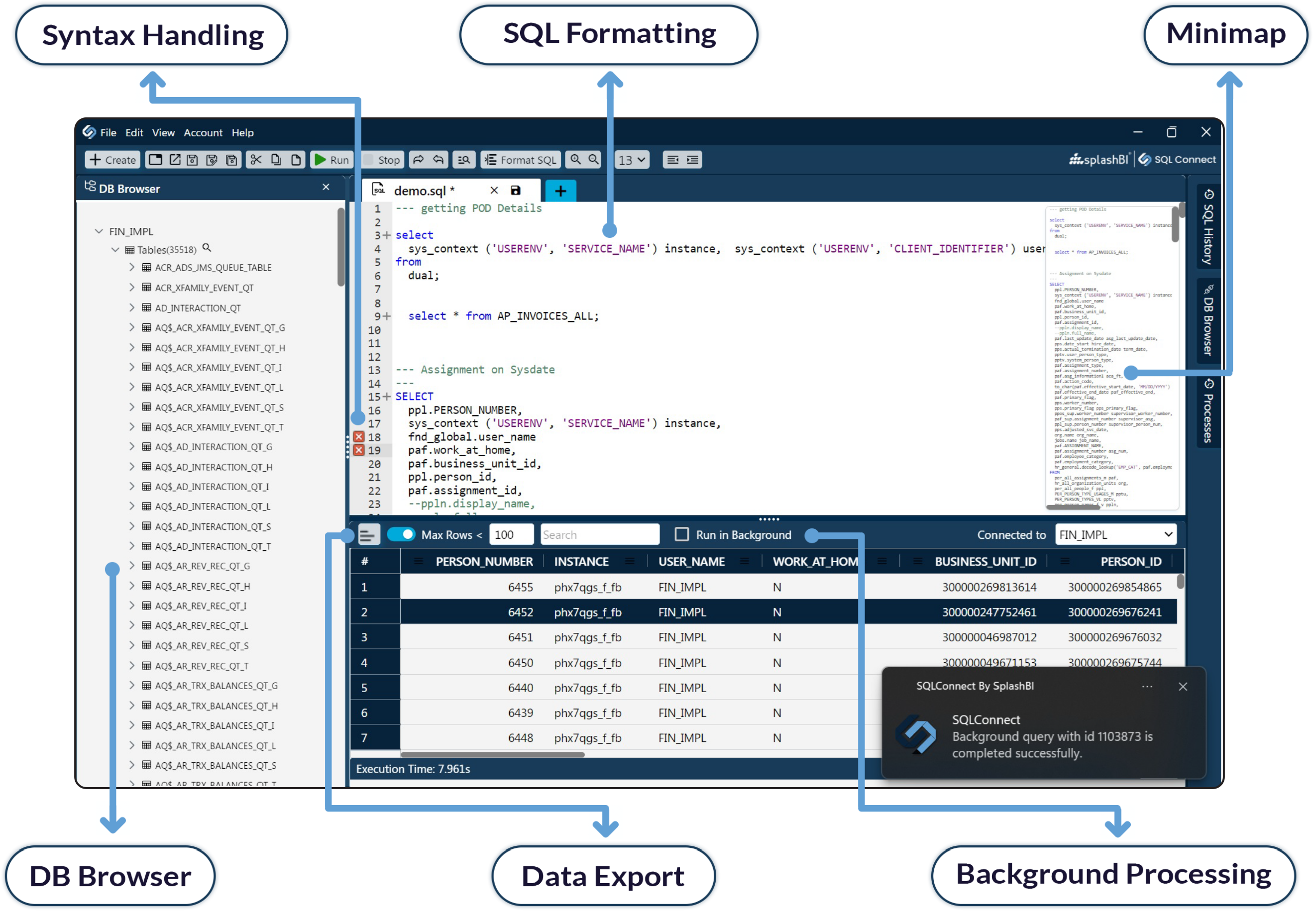
Refined Syntax Handling
Advanced
Data Grid
Export to CSV / EXCEL
Real-Time Rapid Access
Enterprise-Grade Security
Git Integration
Sync with Git, manage versions, and collaborate on SQL code.
Intellisense
Auto-complete SQL, get suggestions, and write error-free code.
Single Sign-On
Simplify logins with SSO, access every pod, and bolster security.
Table level
Security
Control data access, tailor user policies, and ensure compliance.
Multiple Connections
Manage all pods, centralize data, and streamline your workflow.
Background Execution
Run queries in the background, keep working, and get notified.
Testimonials
Real Success With SQL Connect!
Watch how SQL Connect has streamlined workflows and boosted productivity for our users.
Bill H
Sally Beauty
With the help of SQL Connect we can still, post our cloud journey, seamlessly be in control of underlying data to describe object details and export output results. Preferred by developers and system administrators, SQL Connect has multiple environment connections in one place and works well with both SSO and non-SSO. The product roadmap looks very promising as it includes a long list of new features and improvements.
Jonas Mejdahl
Group Manager Enterprise IT & Operations, Three.
There are many perceived benefits to moving from an on-premise ERP application to a cloud-based SaaS equivalent but retaining access to the underlying data store is not one of them. SQL Connect overcomes those limitations and enables a return to a more productive data querying environment with a tool which enables connections to cloud databases, provides database browsing features, multiple query and result windows all typical of the products we knew and loved in those distant days prior to the advent of the cloud.
John Wagner
BI Reporting Lead at ITV
SQL Connect has reformed our data querying and reporting processes at Chewy. Its user-friendly interface and powerful features have significantly improved our efficiency in consolidating and reconciling data, running queries, and generating reports. It’s a game-changer for our team!
Aravind Chencharapu
Lead Software Engineer at Chewy

I was really excited to find this tool at CloudWorld a few years ago. I use this tool every day. Coming from a database world where you could easily access the database, moving to the cloud and finding out you can’t was a big frustration. SQL Connect solved that for us!